


Scope of Application
This guide applies to the Gate App.
Before you begin: Please ensure you have available assets in your Gate Web3 Wallet and have set aside enough gas fees to complete the transfer.
Estimated time required: 3 minutes
Objective
This guide will walk you through the process of transferring assets from your Gate Web3 Wallet back to your Gate account (Gate App).
Steps
Step 1: Access the Send Feature
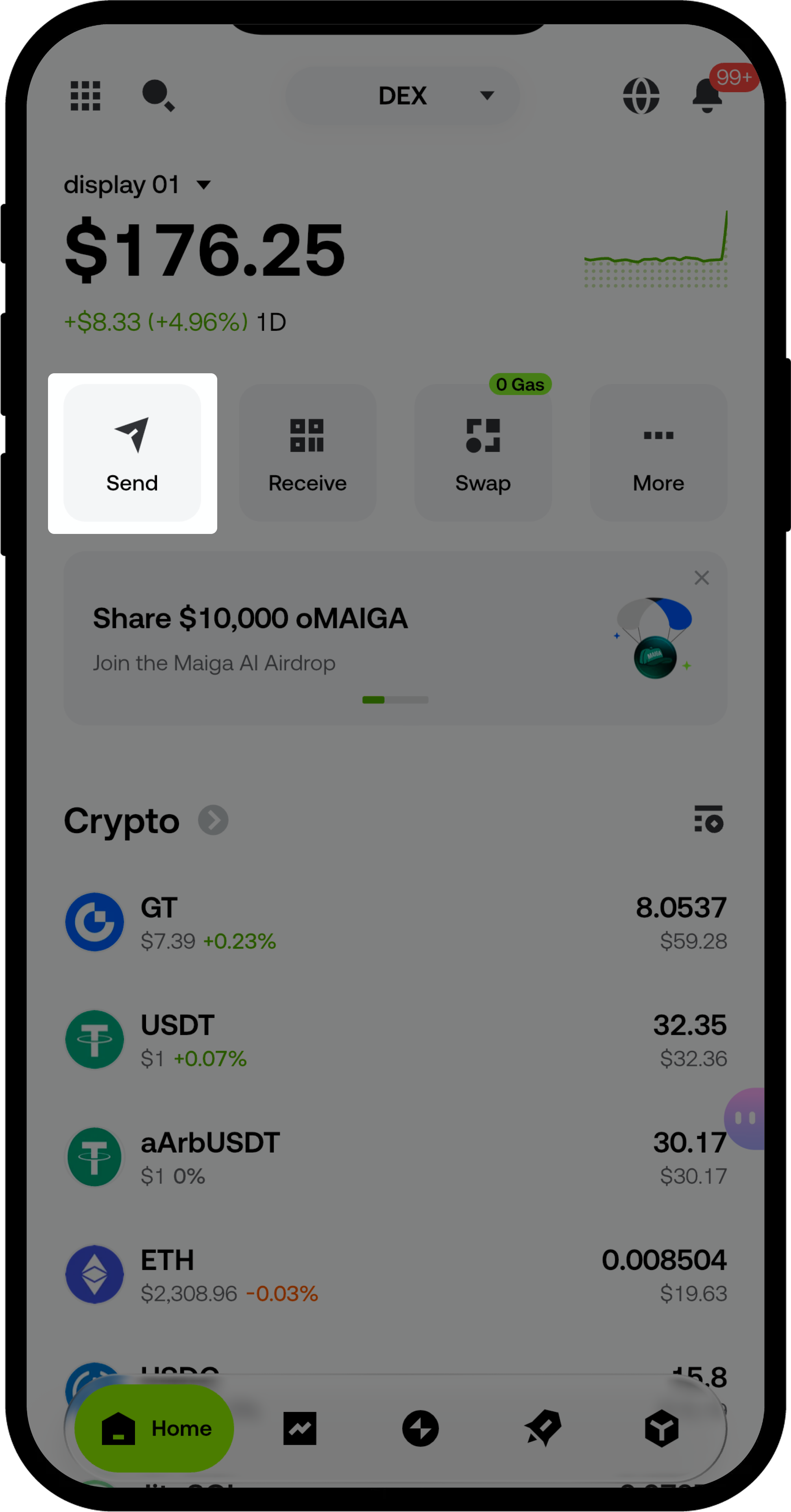
- Open the Gate Web3 Wallet home page.
- Tap the [Send] button.
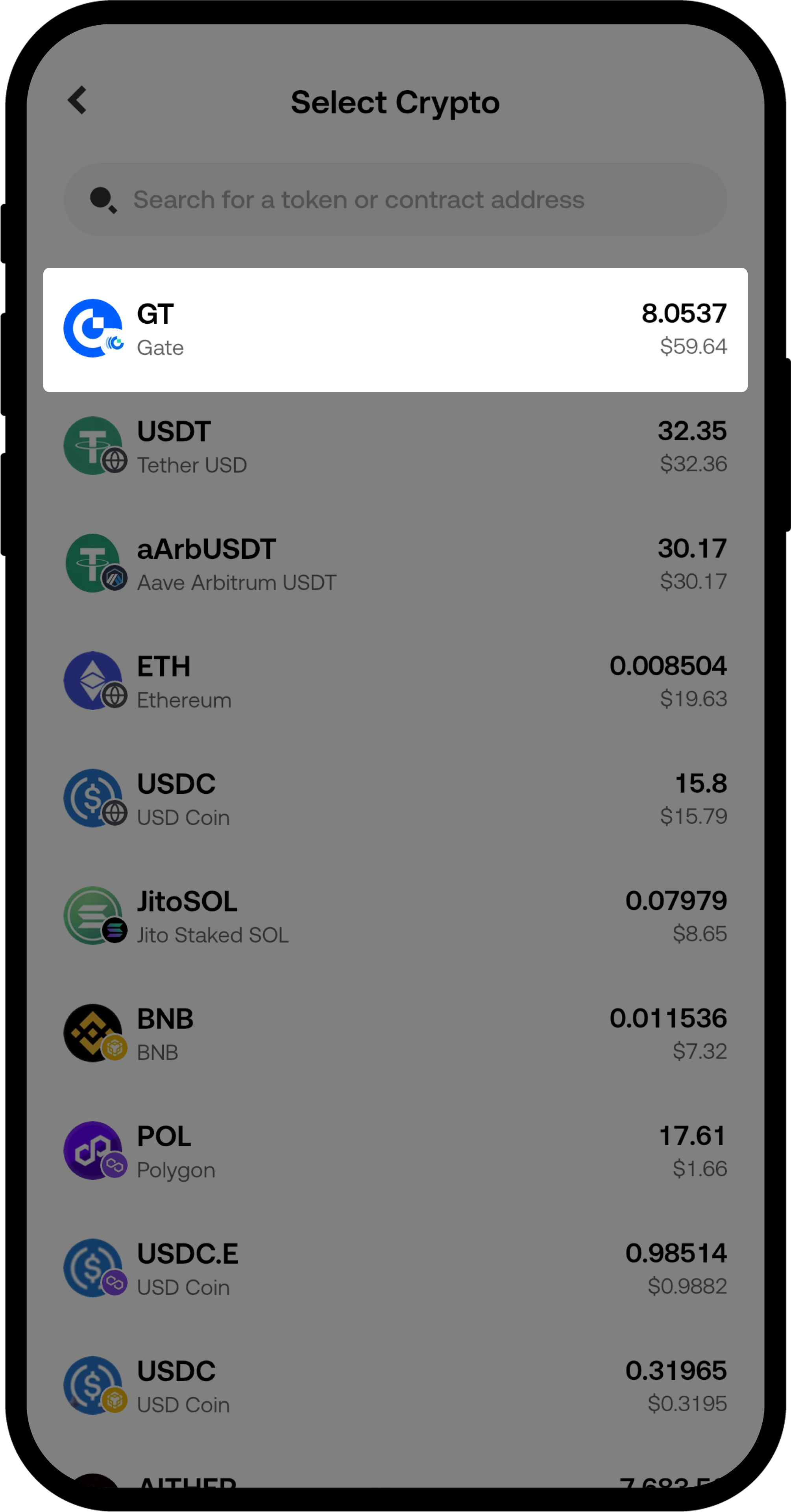
- Select the token you wish to transfer.
Step 2: Select Gate Address as Recipient
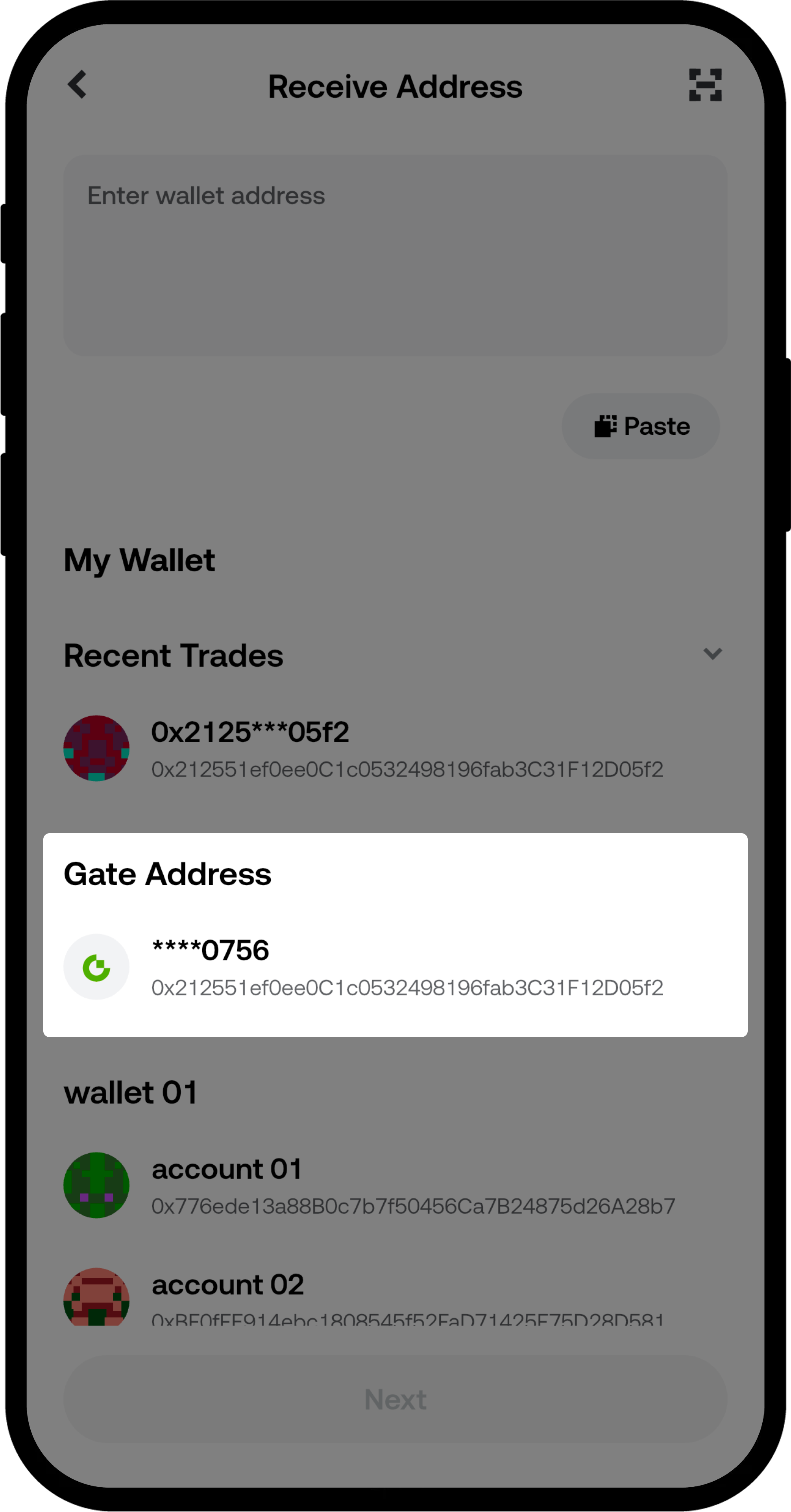
On the send page, choose [Gate Address] as the receiving option.
Step 3: Enter Transfer Details
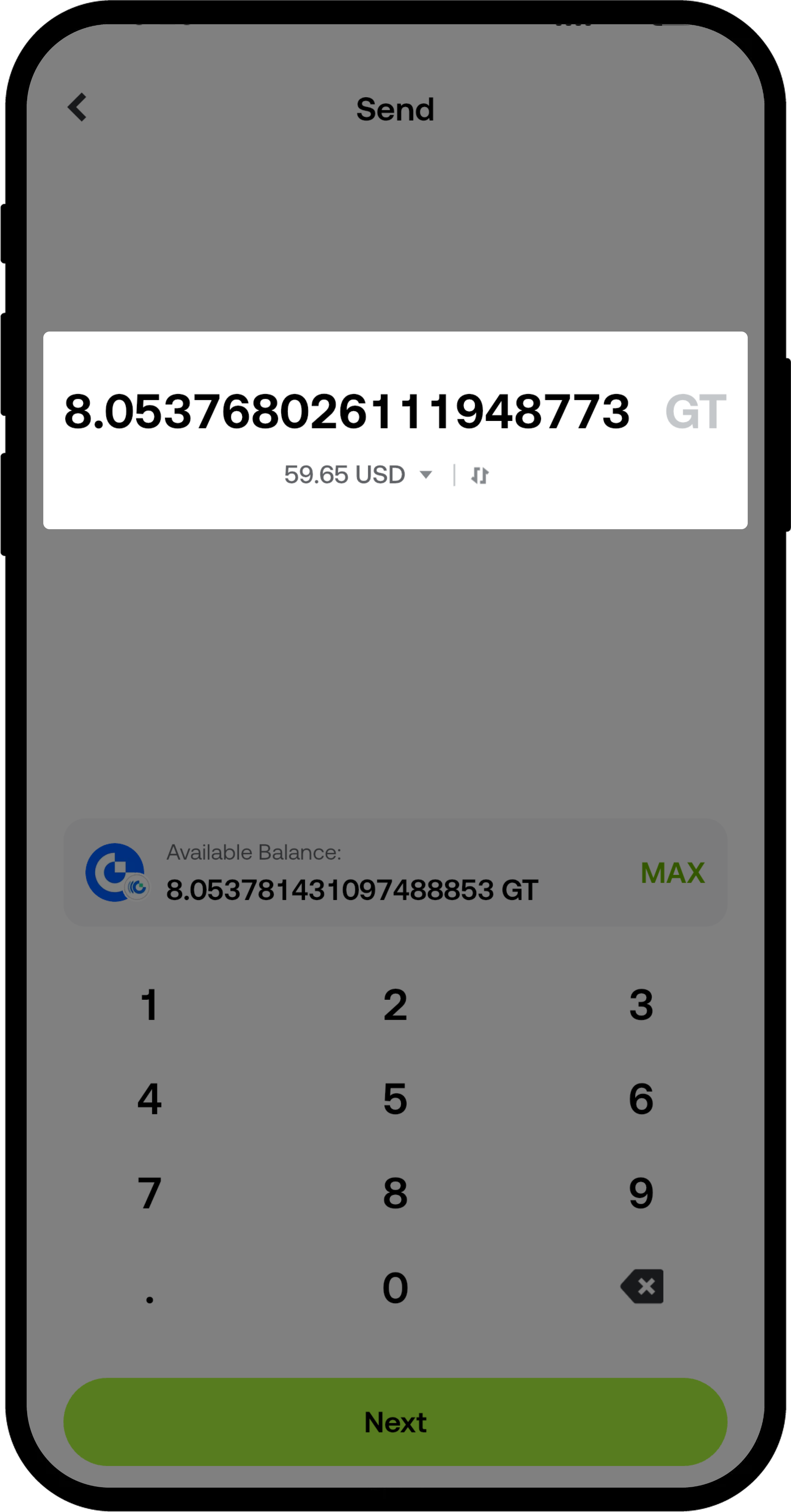
- Enter the amount you wish to transfer.
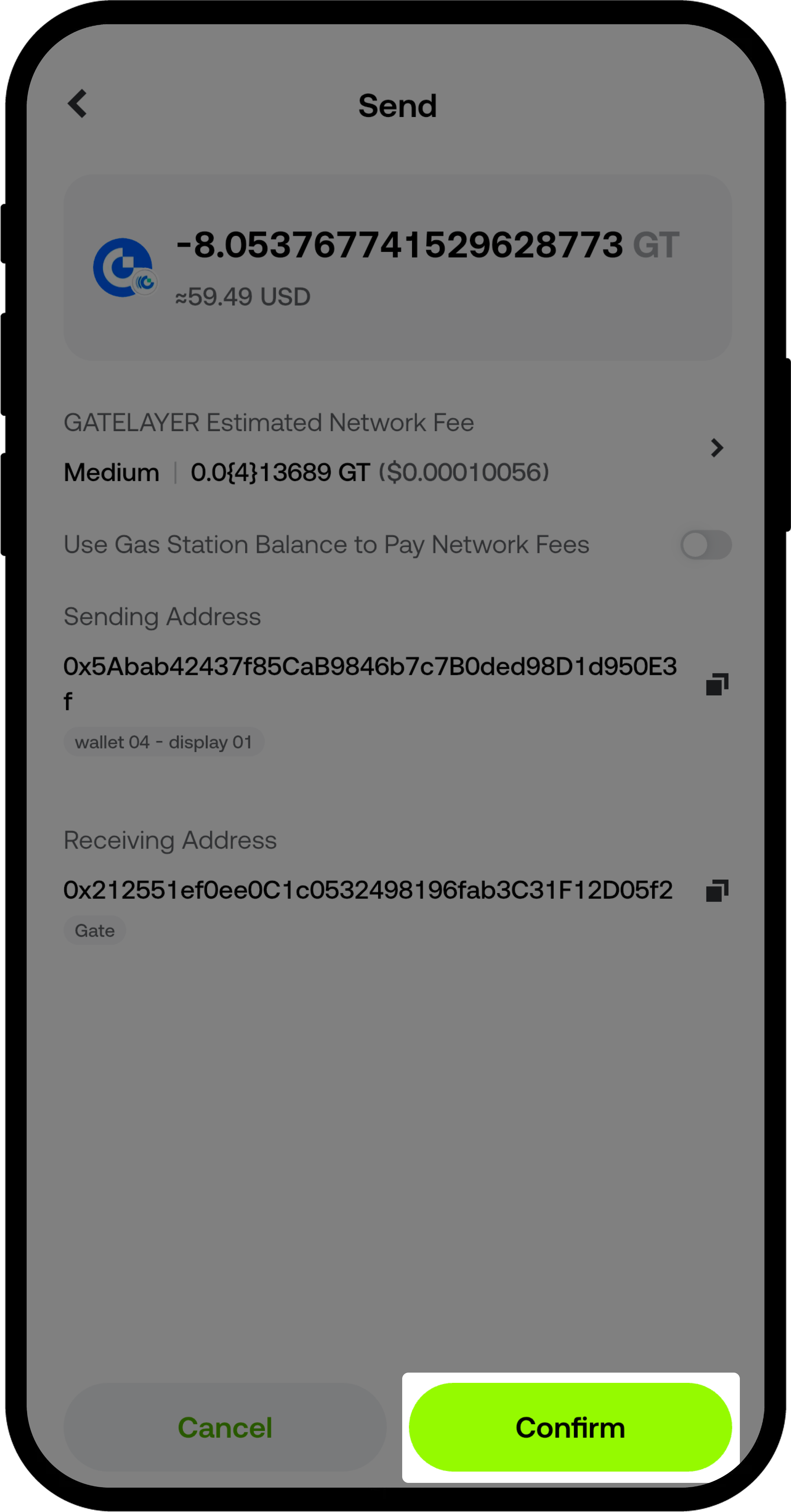
Step 4: Confirm and Complete the Transfer
- Double-check the following details to ensure they are correct:
- Token amount
- Wallet address
- Gas fee
- Tap [Confirm] to transfer the assets to your Gate account.
Step 5: View Transfer History
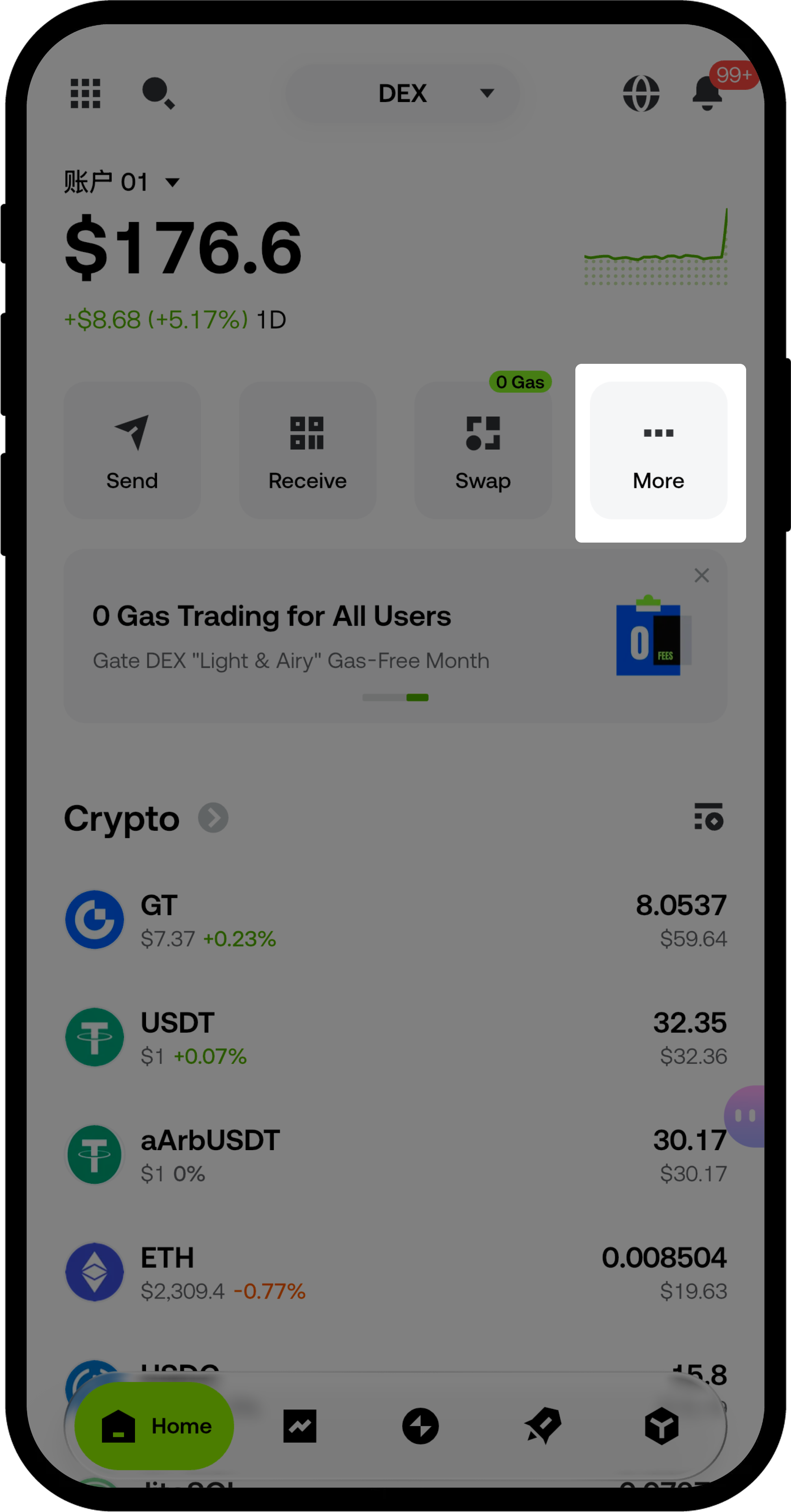
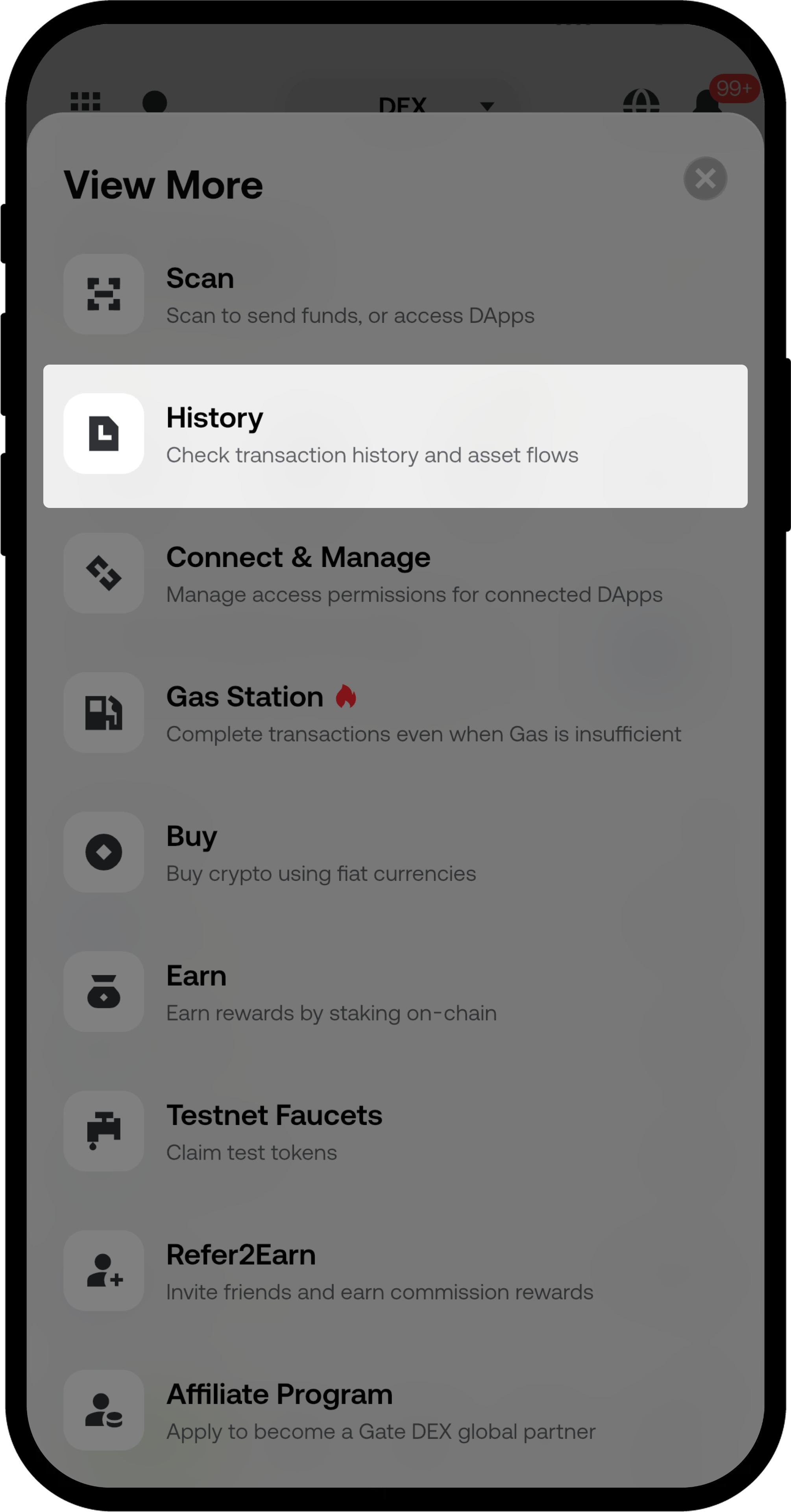
After the transfer is complete, you can tap [History] on the Web3 Wallet home page to view your transfer records.
Important Notes
- Please ensure you have enough gas fees in your Web3 Wallet; otherwise, the transfer may fail.
- The time it takes for the transfer to arrive may vary depending on network congestion and the blockchain used.
- Always double-check the recipient address and token information before transferring to avoid irreversible asset loss due to incorrect details.
- Transferring from your Web3 Wallet to your Gate account is an on-chain transaction and cannot be reversed once confirmed.
Frequently Asked Questions
Q1: How long does it take for assets to arrive in my Gate account?
A: The arrival time depends on the confirmation speed of the blockchain network. Typically, it takes anywhere from a few minutes to an hour, but it may take longer during periods of network congestion.
Q2: What should I do if I don’t have enough gas fees?
A: You’ll need to acquire the native token of the relevant blockchain (for example, ETH for the Ethereum network, BNB for the BSC network) to pay for gas fees before you can complete the transfer.
Q3: Can I cancel the transfer after tapping confirm?
A: No, once you tap confirm and the transaction is broadcast to the blockchain network, it cannot be canceled. Please make sure to carefully review all information before confirming.
Q4: Why hasn’t my transfer arrived in my Gate account yet?
A: Please check the transfer status on the [History] page of your Web3 Wallet. If it shows “Pending Confirmation,” please wait patiently for blockchain confirmation. If it’s confirmed but the assets haven’t arrived, please contact Gate customer support with your transaction hash.
Disclaimer
The content provided herein is for reference and educational purposes only and does not constitute any financial, investment, trading, or legal advice, nor does it constitute an offer or solicitation to buy or sell any digital assets. Gate makes no express or implied representations or warranties regarding the accuracy, completeness, or timeliness of the information contained herein. Product features, interfaces, rules, and fee structures may be updated or adjusted at any time. Please refer to the latest announcements and the actual information displayed on the Gate platform for the most accurate details.
Digital asset investments involve significant risk, and prices may fluctuate substantially. You may lose the entire amount of your investment. Please make decisions cautiously based on your own financial situation and risk tolerance after fully understanding the associated risks. If necessary, you are advised to consult an independent professional financial or legal advisor.
For more information about potential risks, please refer to Gate's Risk Disclosure and User Agreement.
