


Applicable Scope
This guide applies to Gate App
Before you start: Ensure you have your mnemonic phrases or cloud backup available
Estimated time: 3 m
Objective
This guide will walk you through how to re-import your wallet using mnemonic phrases or restore from cloud backup after resetting your wallet on Gate App.
Steps
Step 1: Import Wallet Using Mnemonic Phrases
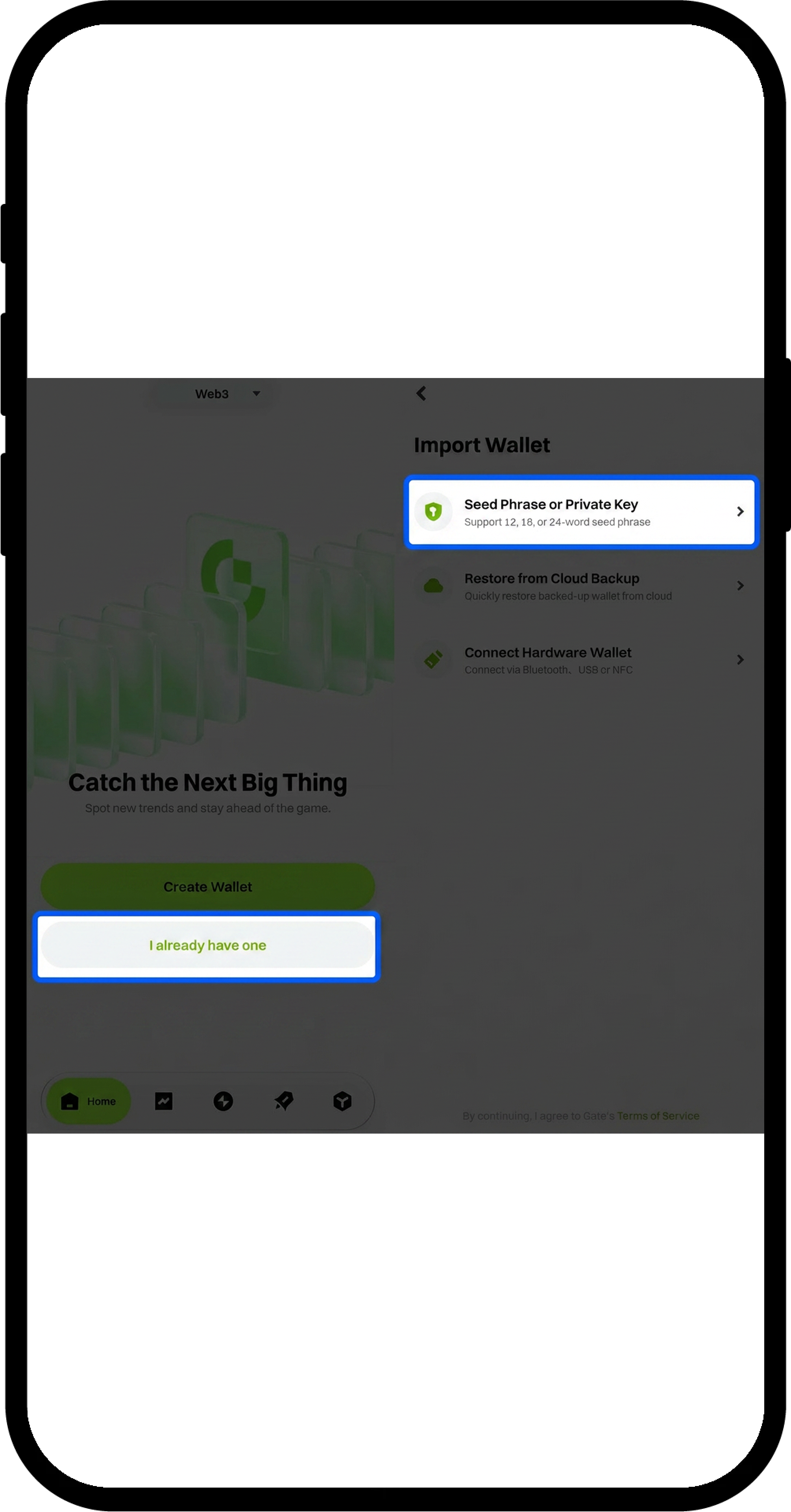
- On the wallet interface, click the "Create or Import Wallet" button.
- Select "Import Wallet" from the options.
- Enter your mnemonic phrases to restore the wallet.
Step 2: Restore Wallet from Cloud Backup (Optional)
If you performed cloud backup on other wallets before resetting your wallet, you can use the cloud backup recovery function:
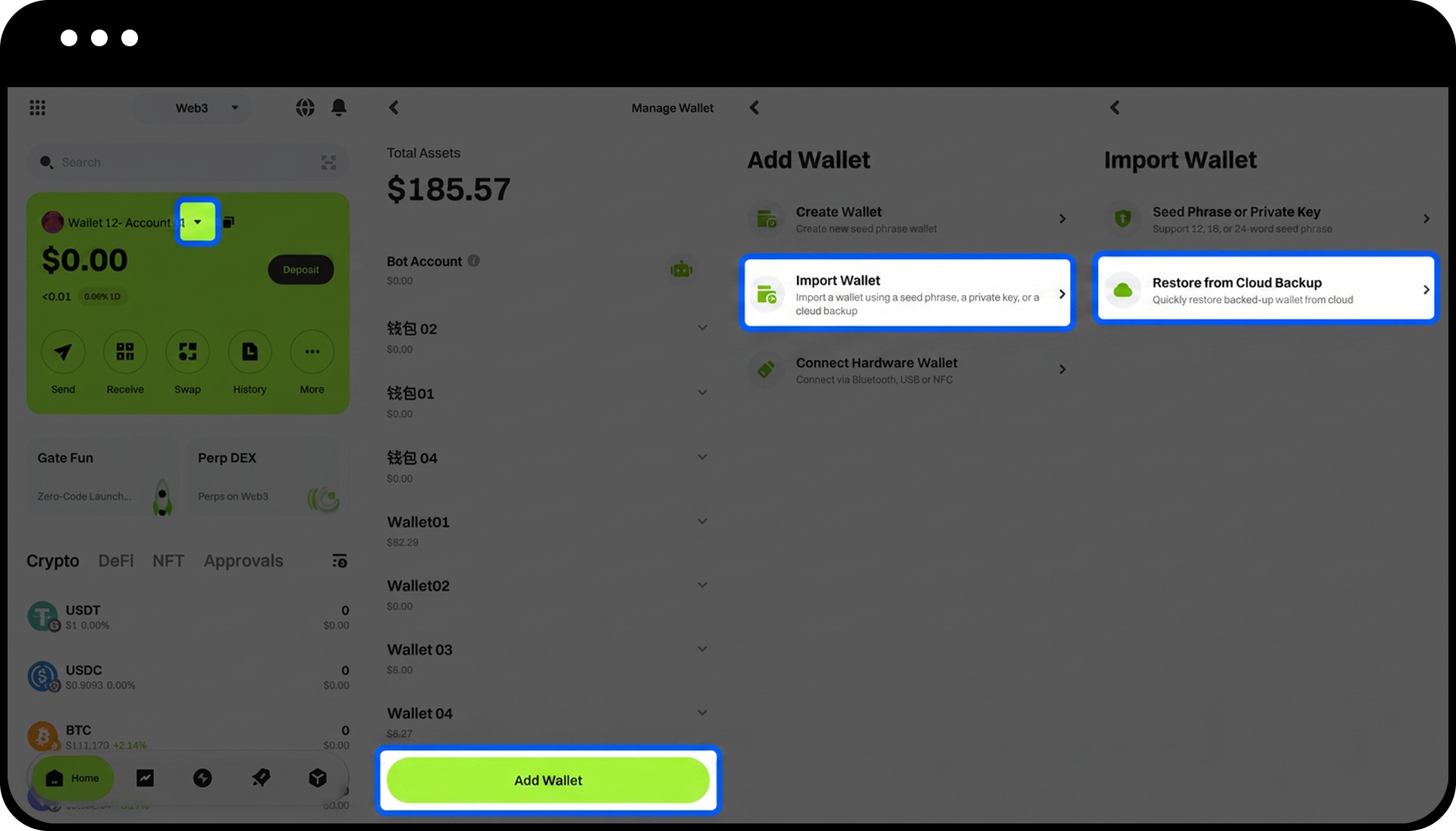
- Click the account dropdown button (inverted triangle) in the upper left corner of the homepage.
- Select "Add Wallet" from the menu.
- Click "Restore Cloud Backup Wallet".
- Enter your fund password when prompted.
- Your cloud backup wallet will be restored.
Notes
- Store your mnemonic phrases securely and never share them with anyone. Anyone with access to your mnemonic phrases has full control over your wallet.
- Ensure you enter the mnemonic phrases in the correct order during import.
- Cloud backup restoration requires your fund password. If you have forgotten your fund password, you will need to use the mnemonic phrase import method instead.
- After restoring your wallet, verify that all assets and addresses are correctly displayed before conducting any transactions.
FAQ
Q1: What should I do if I lost my mnemonic phrases?
A: If you have enabled cloud backup before resetting your wallet, you can use the cloud backup recovery function to restore your wallet. If both mnemonic phrases and cloud backup are unavailable, the wallet cannot be recovered.
Q2: Can I import multiple wallets using different mnemonic phrases?
A: Yes, Gate App supports managing multiple wallets. You can import additional wallets by clicking "Add Wallet" and following the same import process.
Q3: Why does my restored wallet show a different balance than before?
A: Ensure you have entered the correct mnemonic phrases in the proper order. If the phrases are correct but the balance differs, the wallet may need time to synchronize with the blockchain network. Wait a few moments and refresh to check again.
Disclaimer
The content provided herein is for reference and educational purposes only and does not constitute any financial, investment, trading, or legal advice, nor does it constitute an offer or solicitation to buy or sell any digital assets. Gate makes no express or implied representations or warranties regarding the accuracy, completeness, or timeliness of the information contained herein. Product features, interfaces, rules, and fee structures may be updated or adjusted at any time. Please refer to the latest announcements and the actual information displayed on the Gate platform for the most accurate details.
Digital asset investments involve significant risk, and prices may fluctuate substantially. You may lose the entire amount of your investment. Please make decisions cautiously based on your own financial situation and risk tolerance after fully understanding the associated risks. If necessary, you are advised to consult an independent professional financial or legal advisor.
For more information about potential risks, please refer to Gate's Risk Disclosure and User Agreement.
