


Before You Quit ChatGPT, Do This to Take Your Data With You
In brief
- The #QuitGPT backlash erupted after OpenAI’s Pentagon AI deal, triggering mass ChatGPT deletions and a surge of users switching to Claude.
- Canceling ChatGPT does not erase your data from OpenAI’s server.
- This step-by-step guide shows how to permanently delete your OpenAI account without giving away your data.
On the evening of February 27, Sam Altman posted a brief announcement on X. OpenAI had signed an agreement with the U.S. Department of War to deploy its AI models on classified military networks—hours after Anthropic refused the same terms and was stripped of its Pentagon contract for declining to permit mass domestic surveillance and autonomous lethal weapons. The backlash was immediate and unlike anything the AI industry had ever seen.
Within hours, ChatGPT uninstalls spiked. One-star App Store reviews surged 775% in a weekend. Anthropic’s Claude rocketed to the No. 1 free app in the United States. The #QuitGPT movement has since surpassed 2.5 million pledges, with users on Reddit and X sharing deletion guides and screenshots of their cancellation confirmations.

Screenshot of the QuitGPT pledge page.
A hundred OpenAI employees signed an open letter titled “We Will Not Be Divided,” expressing solidarity with Anthropic’s stance on military AI. Altman’s response further rankled observers: “So maybe you think the Iran strike was good and the Venezuela invasion was bad,” Altman told employees in an all-hands meeting, according to CNBC. “You don’t get to weigh in on that.” Most people migrating to Claude or other alternatives are doing it for reasons of principle, not strictly privacy. But if you are already walking out the door, you may as well walk out clean. OpenAI has been using your conversations by default to train its models since the beginning. Your chats, your memories, your writing style, your corrections, your workflows, all of it has been feeding the machine unless you took specific steps to stop it. And simply canceling your subscription does nothing to remove any of that. Here is everything you need to do before you close the account. Step 1: Export all your conversations Before anything else, pull a full copy of your data. ChatGPT has a built-in export feature that packages your entire chat history into a downloadable ZIP file. It includes a conversations.json file with full message metadata (timestamps, model versions, every prompt and response) along with a browser-viewable chat.html file. Once your account is deleted, this data is gone forever and unrecoverable by any means, including OpenAI support.
To export, go to ChatGPT, click your profile icon in the bottom-left corner, select Settings, then Data Controls, then Export Data. After that, hit Confirm Export. OpenAI will email you a download link within a few minutes. The link expires after 24 hours, so download immediately.
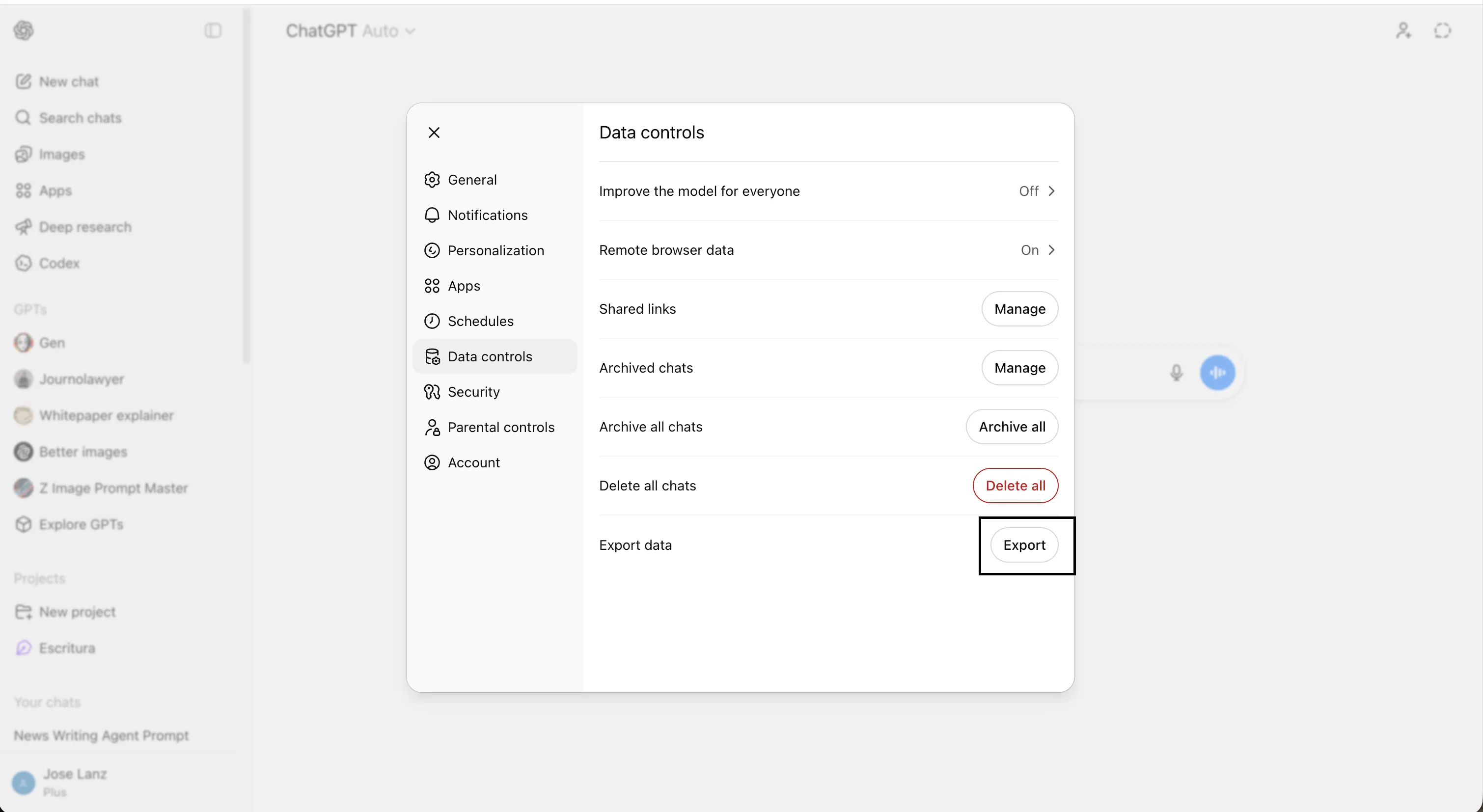
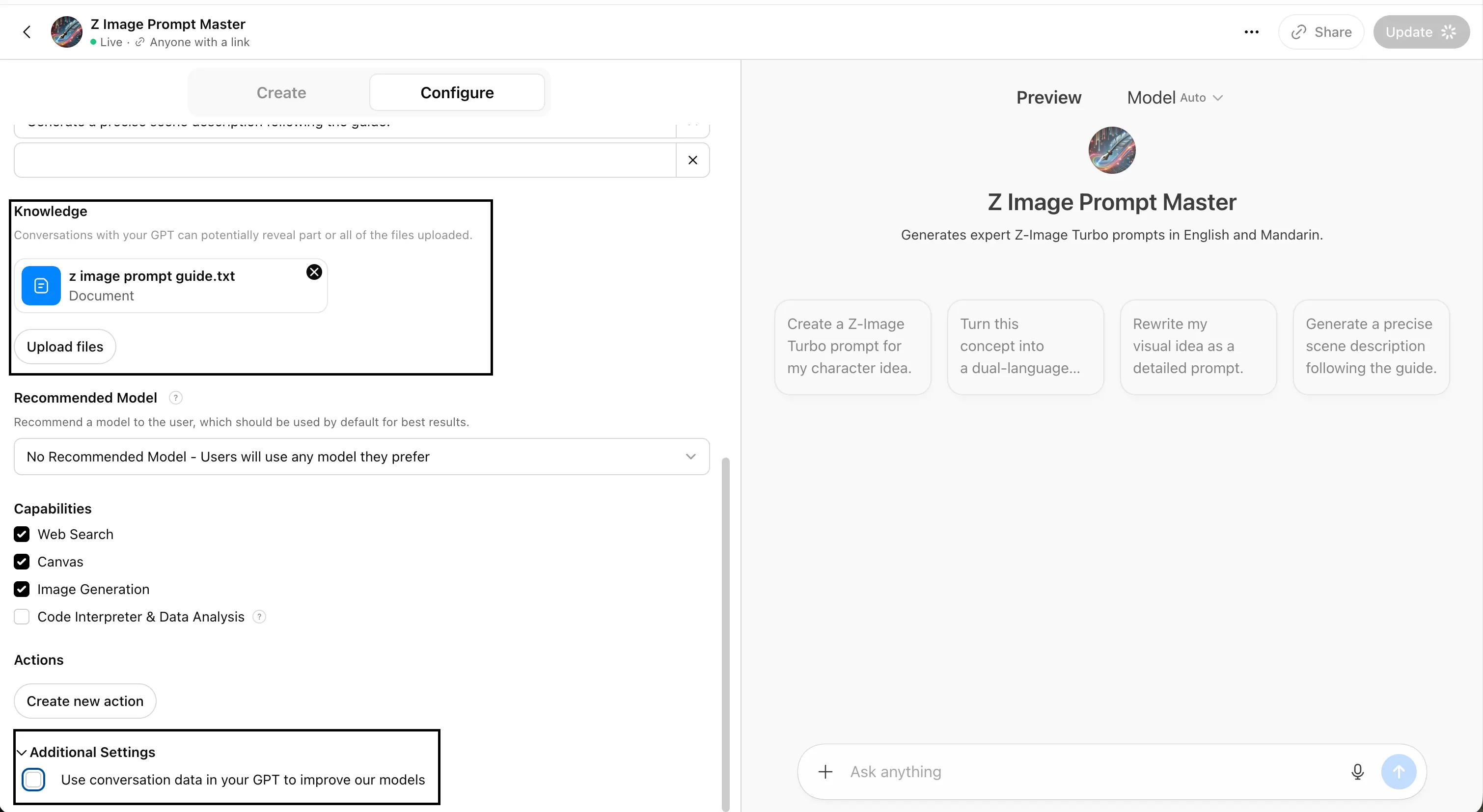
The same export option works on Free, Plus, and Pro plans. If you have set up Custom GPTs or Projects with their own context, run the export separately from within each of those, as they store their own conversation histories. Note: If you are on a Team or Enterprise plan, workspace conversations cannot be exported at all. You’ll also want to make sure to uncheck the option to let OpenAI use your conversations with a GPT to improve its models. That is basically an open door for them to understand the instructions and everything you did to build the Agent, all the data you fed, and all the interactions and conversations you had with it. So it’s important to leave it off.
This is important because, beyond nostalgia, your conversation archive is a document of months or years of intellectual work—research threads, code iterations, writing drafts, problem-solving sessions. It is also a portable context you can bring to a new platform. If you end up importing it into Claude or another assistant, feed it in structured chunks rather than raw JSON dumps, and ask the new model to extract your preferences and habits from it. Step 2: Turn off model training This is the single most important setting most ChatGPT users have never touched. By default, OpenAI can use your conversations to improve its models—meaning your prompts, your personal details, and your corrections are potentially reviewed by trainers and used to shape future versions of ChatGPT. Turning this off stops new conversations from entering that pipeline. It does not retroactively remove anything already used, but it draws a line from this moment forward.
To disable, click your profile icon, go to Settings, select Data Controls, find the toggle labeled “Improve the model for everyone,” and switch it off. OpenAI confirms the change applies account-wide and it takes effect immediately.
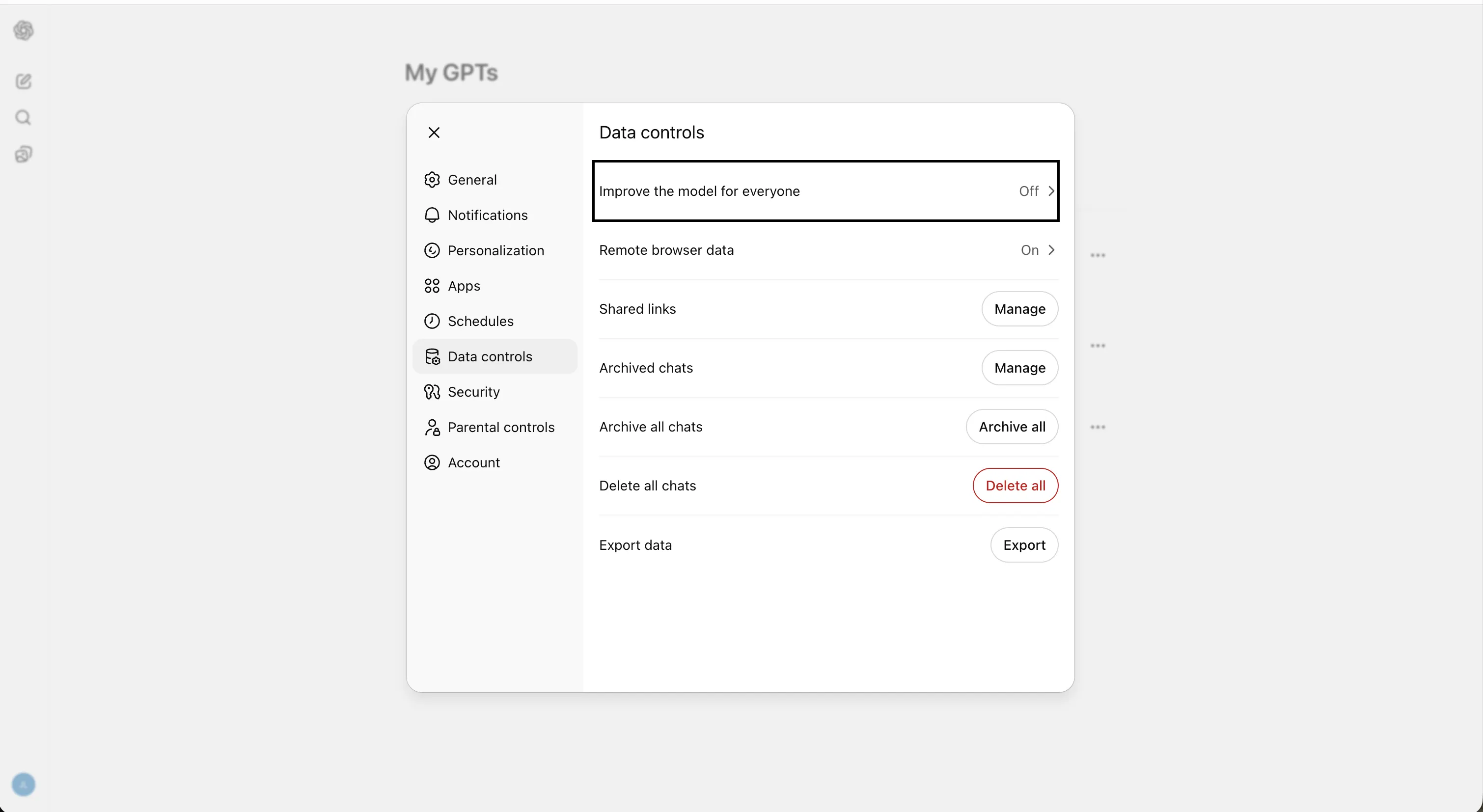
One important caveat: If you ever choose to give thumbs-up or thumbs-down feedback on a response after disabling this, that conversation will be used for training; meaning you are basically training OpenAI’s models for free. Do not leave feedback after flipping this toggle. It’s also important to note the Sora settings and Codex settings have their own training controls and are not affected by this toggle—if you use either product, disable training there individually as well. Step 3: Review and export your saved memories ChatGPT’s memory system works in two layers: “saved memories,” which are explicit details you asked it to remember or that it captured on its own, and “chat history memory,” which lets it pull context from past conversations. The latter is active by default for Plus and Pro users, meaning ChatGPT has been quietly building a profile of your behavior, preferences, and patterns across every conversation you have ever had. Before you delete anything, look at what it actually knows. Go to Settings → Personalization → Manage Memory (you have to scroll until you find the option). You will see a list of every saved memory entry. Read through it. For many long-term users, this list is a surprisingly intimate portrait: your job, your location, your writing voice, your dietary preferences, your recurring anxieties. Save a copy of this list manually—screenshot it or copy the text into a document—before deleting.
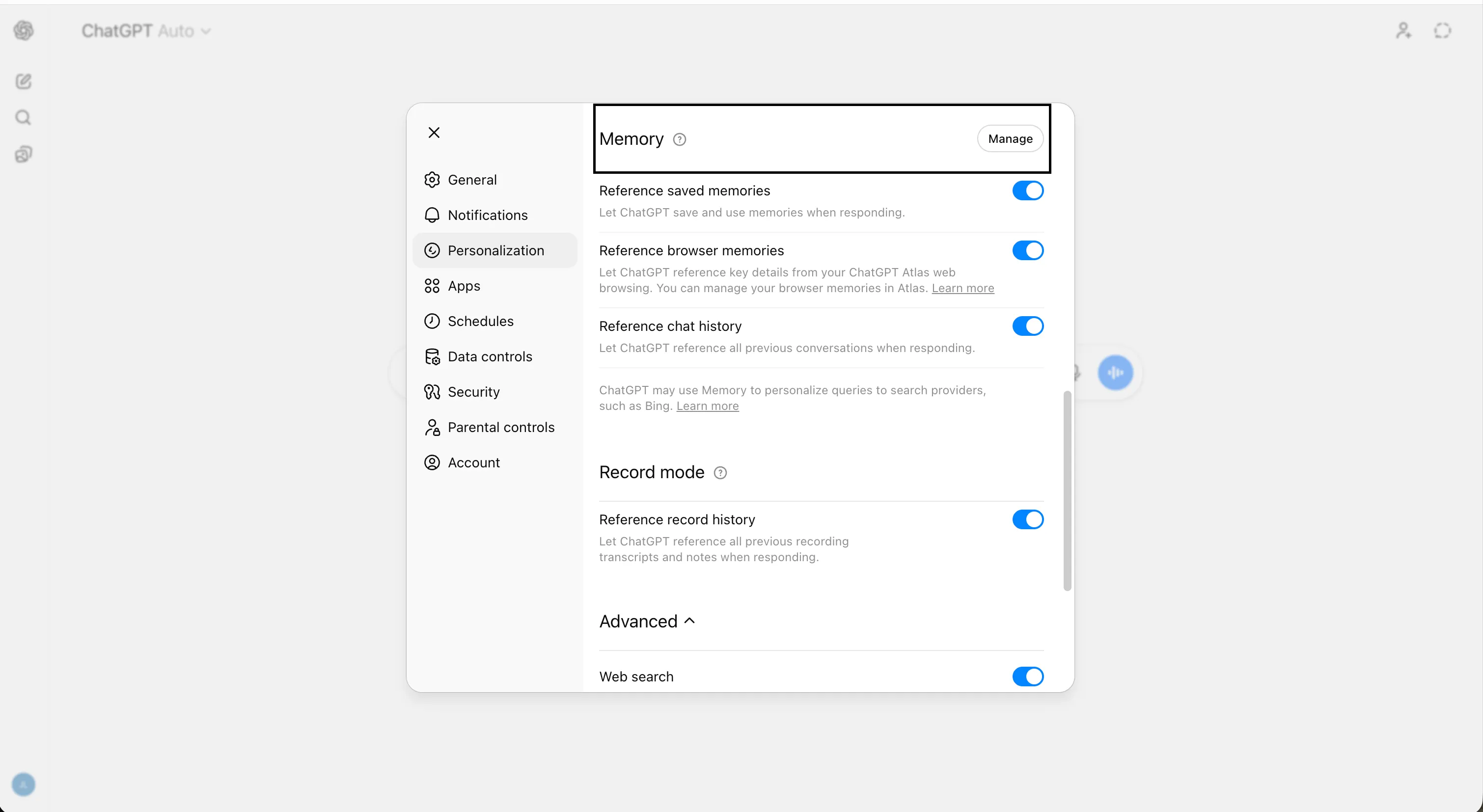
This memory export is portable context you can use to get up to speed faster on whichever platform you land on next. OpenAI’s own documentation confirms that saved memories are stored separately from chat history, so deleting your chats does not erase them. Step 4: Delete all your memories
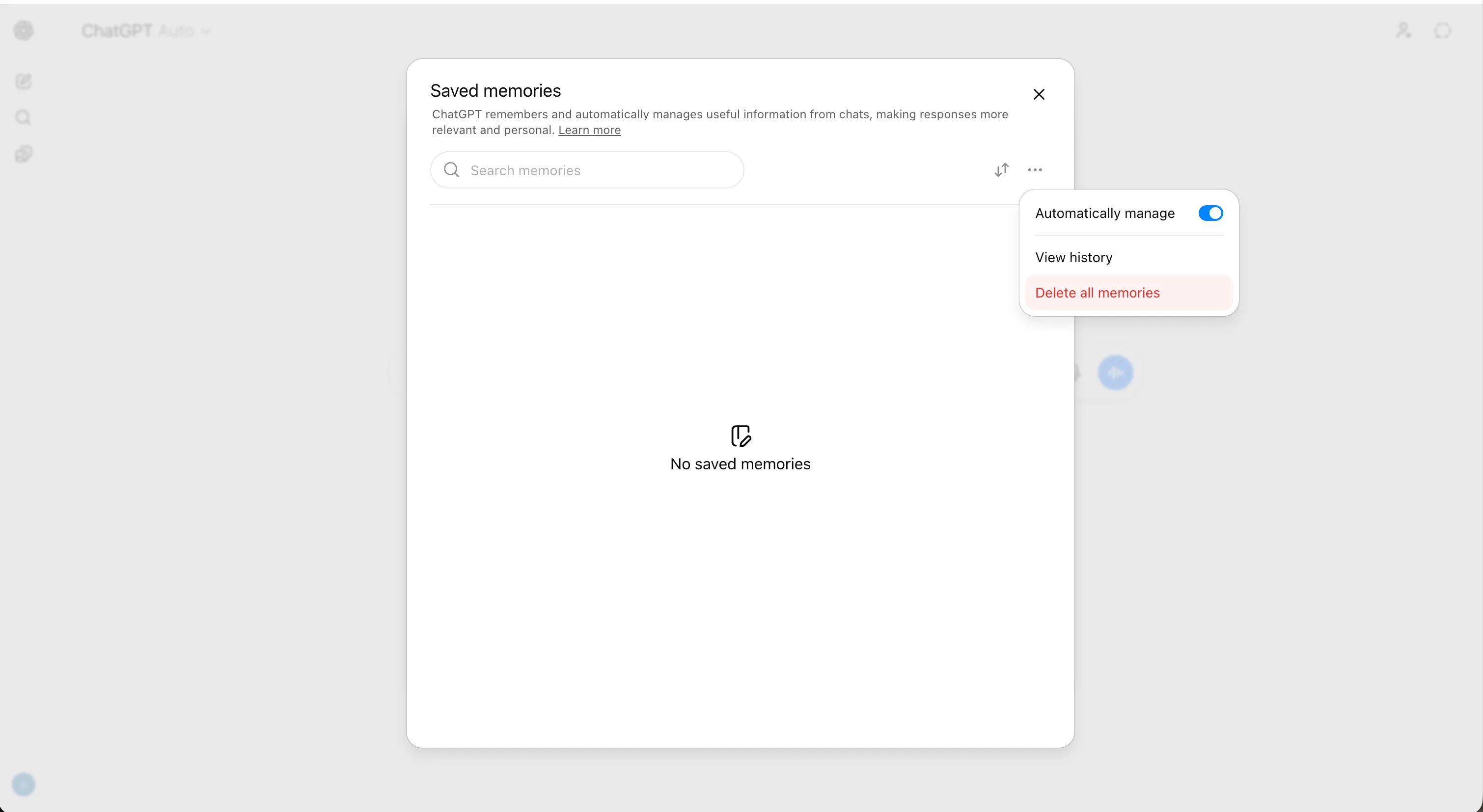
Once you have saved a copy, wipe the memory entirely. From the same Manage Memory screen, you can delete entries individually using the trash icon next to each one, or clear everything at once with the Delete all button.
OpenAI states it may retain a log of deleted saved memories for up to 30 days for safety and debugging purposes, but deleting them removes them from active use in future conversations immediately. You can also turn off both memory modes. To do that, go to Settings → Personalization → Memory and toggle off both Reference saved memories and Reference chat history. This prevents any residual context from being applied to conversations you might have between now and final deletion. One thing that catches people off guard: deleting a chat does not delete memories created during that chat. You must clear the two systems separately. Do both. Step 5: Delete all your conversations
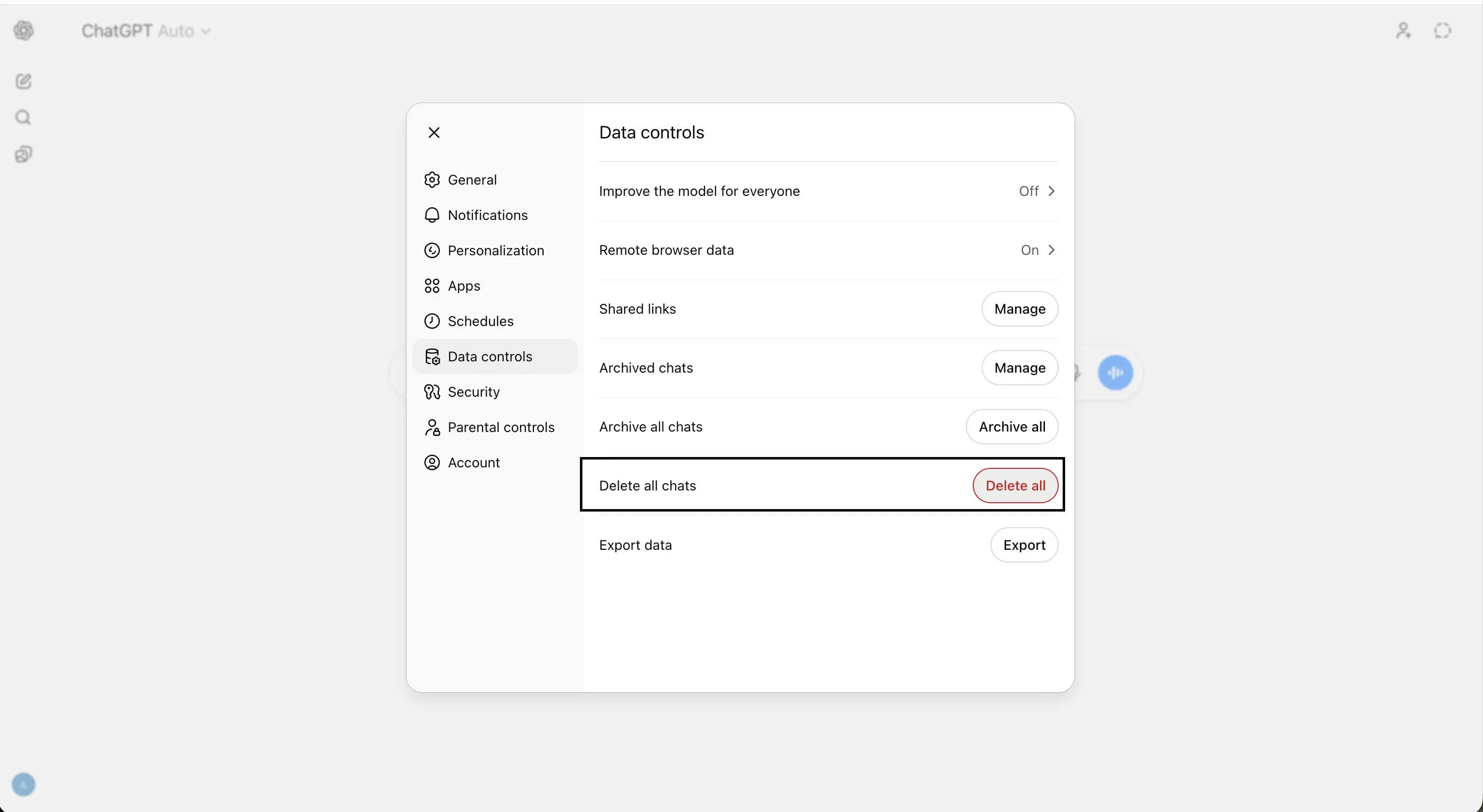
With memories handled and your conversations already in your hard drive, go after the conversation history itself. The fastest way to do that on desktop is: click your profile icon, go to Settings, then Data Controls, find Delete all chats, and confirm.
Every conversation in your sidebar will disappear instantly. OpenAI schedules deleted chats for permanent removal from its systems within 30 days, with limited legal or security exceptions. On mobile (iOS and Android), the path is the same: profile icon → Data Controls → Delete all chats.
A few things to know: Do not click on archive all chats. You want to delete them from OpenAI’s servers. Archived chats are retained exactly like unarchived ones—archiving only removes them from your sidebar, not from OpenAI’s servers.
If you have archived anything, unarchive and delete it. Additionally, if you have shared any conversation links with other people, deleting the original conversation invalidates the link—but if someone already imported your chat into their own history, your deletion does not remove their copy.
You can manage your shared links in the corresponding section under Data Control.
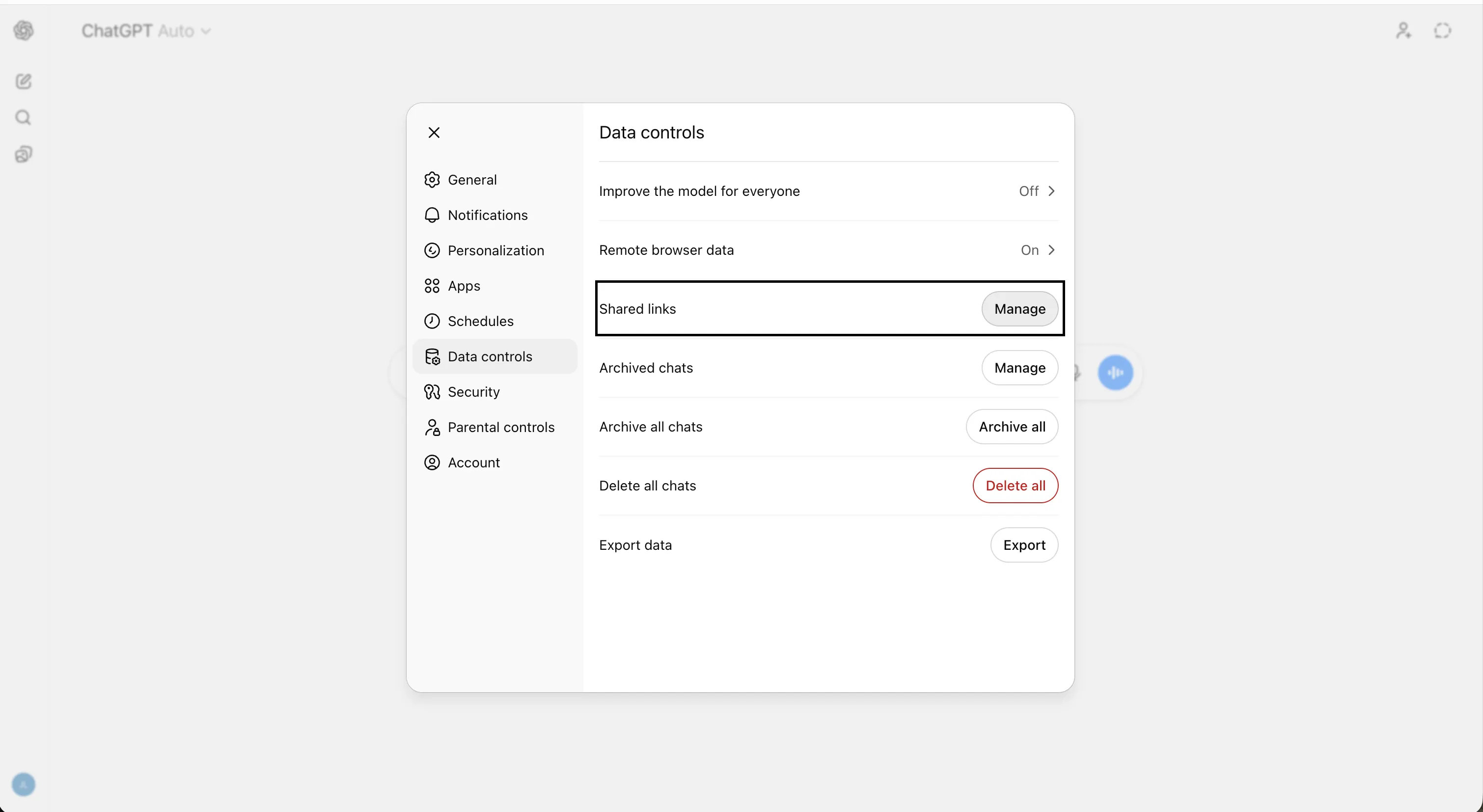
To delete them, simply click on “Manage” and click the trash icon on each conversation. Shared links are a real data leak vector most users ignore entirely. Step 6: Revoke connected app permissions Many users have connected ChatGPT to external services: Google Drive, Gmail, Google Calendar, Slack, and others. When these connections are active, ChatGPT can read and process data from those apps to generate responses. That synced data is retained within conversations and is only removed when those conversations are deleted. If you have already deleted your chats, the linked app data in those conversations is gone too. But if you connected apps and never used them, or used them in conversations you have not yet deleted, those connections may still be pulling data. Go to Settings → Apps and review what you have authorized or enabled. Revoke any integrations you no longer want active. Then delete any remaining conversations that referenced those integrations.
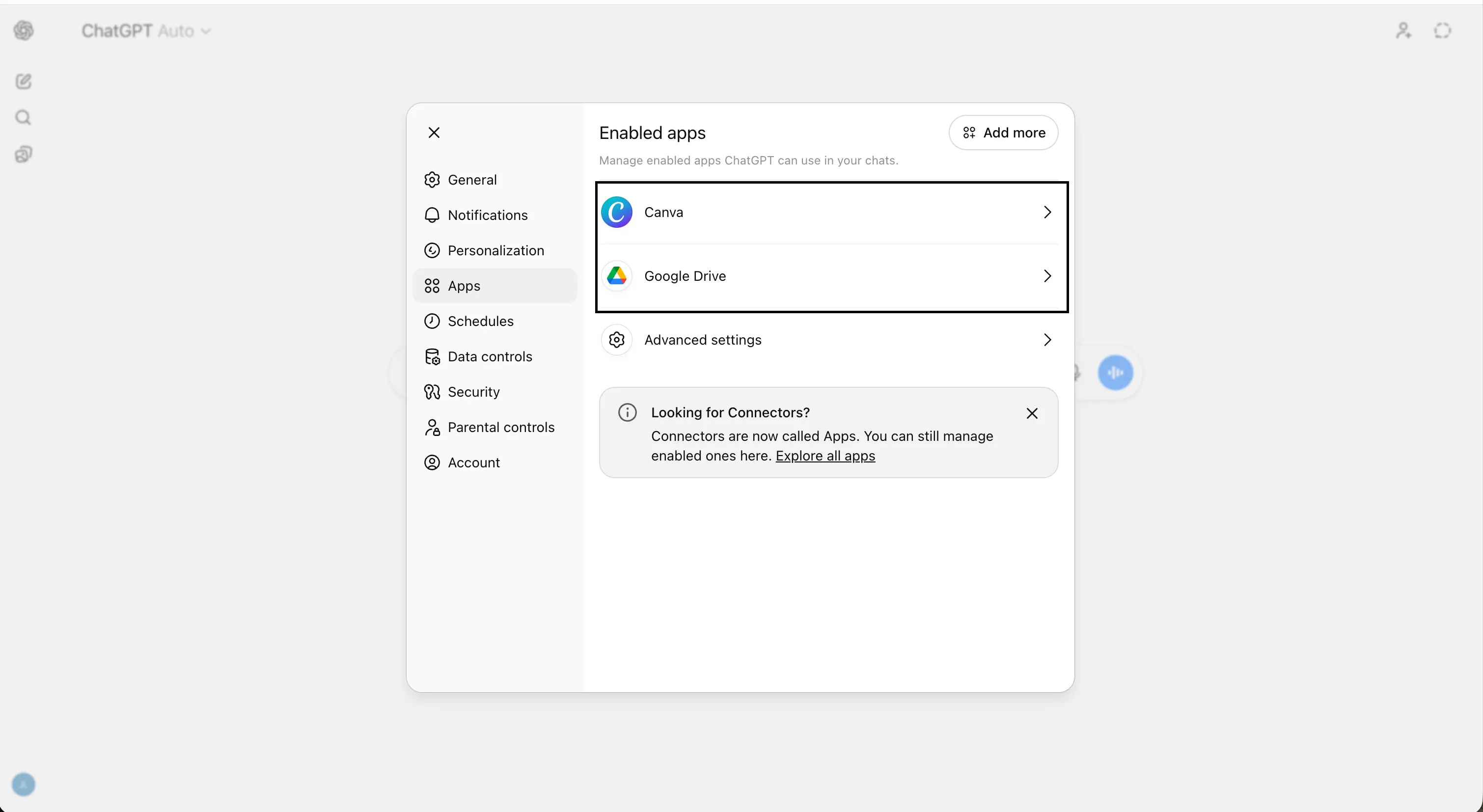
This is especially important for users who gave ChatGPT access to Gmail or Drive. that connection potentially exposed inboxes, documents, and calendar data to OpenAI’s systems in ways that go well beyond normal chat usage. Step 7: Cancel your subscription properly, including in app stores This is where most users make a costly mistake. If you subscribed to ChatGPT Plus directly on the web, canceling through OpenAI stops billing. But if you subscribed through Apple’s App Store or Google Play, deleting your OpenAI account does not cancel that mobile subscription. OpenAI’s own help documentation states this explicitly: You must cancel in the App Store or Play Store separately to stop future charges.
On iOS: go to Settings → your Apple ID → Subscriptions → find ChatGPT → Cancel Subscription. On Android: open the Play Store → tap your profile → Payments & subscriptions → Subscriptions → ChatGPT → Cancel. For your own peace of mind, you should do this before deleting your account. Step 8: Submit a data deletion request through the privacy portal Deleting your account triggers a 30-day data removal process, but submitting a formal request through OpenAI’s privacy portal creates a separate, documented paper trail. Under GDPR, CCPA, and other consumer privacy frameworks, you have an explicit right to have your data erased, and a formal request obligates OpenAI to respond in writing and confirm compliance. This matters if you are in the E.U. or any jurisdiction with enforceable data rights like California, for example. Go to privacy.openai.com, click Make a Privacy Request, and select Delete my ChatGPT account. Follow the prompts. This is separate from deleting your account through the ChatGPT interface and you can (and probably should, if you’re a privacy enthusiast) do both. The portal submission is your formal record that you exercised your right to erasure, which you may need if data ever surfaces somewhere it should not be. Step 9: Delete your account With everything backed up, cleaned out, and your subscription canceled, you are ready for the final step before clicking QuitGPT’s “Join” button if that’s your thing. In ChatGPT, go to Security and Log out of all devices except the one you’re currently using. Then, go to Data Controls, find Delete Account, and click it. You will be prompted to re-enter your email address and type “DELETE” to confirm.
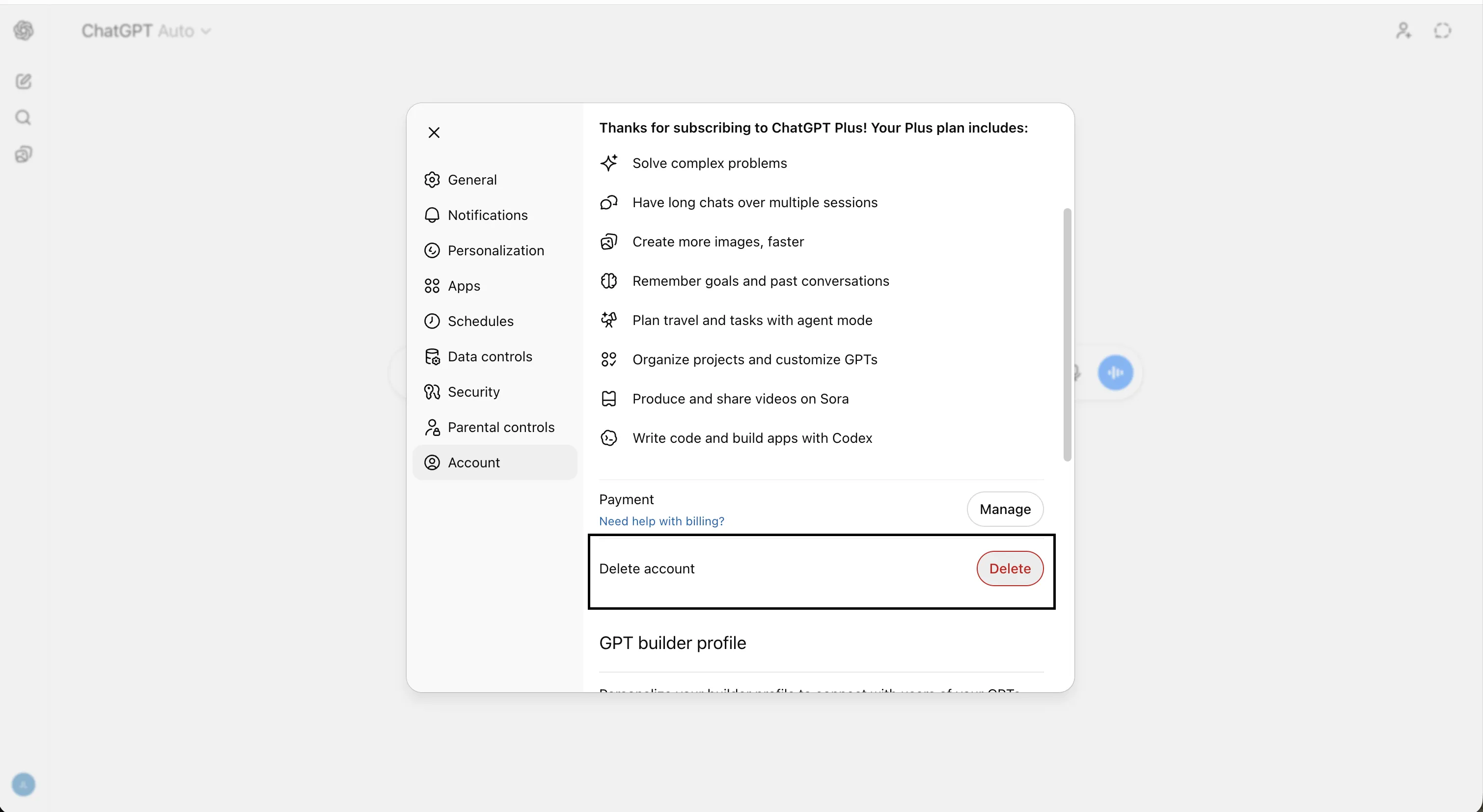
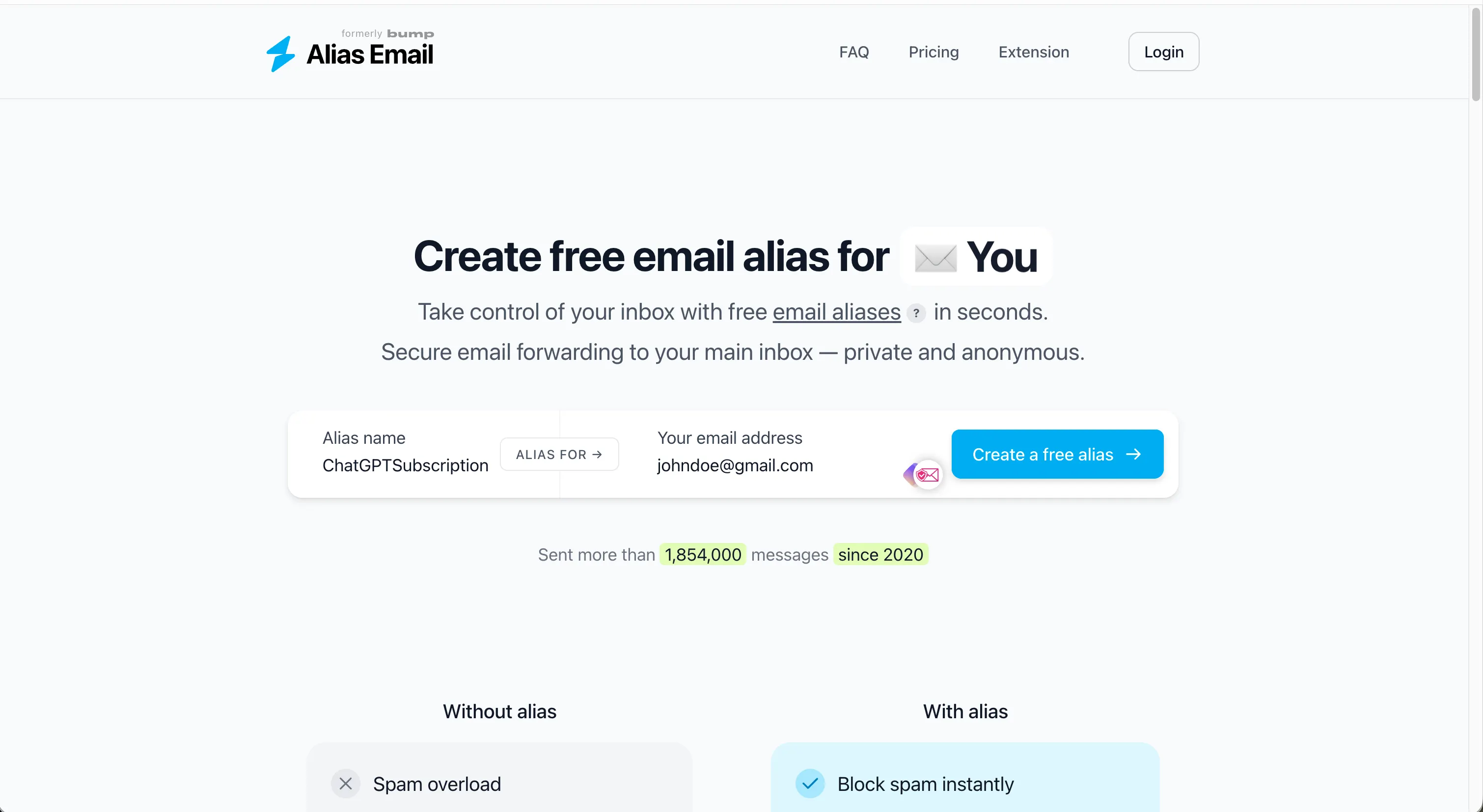
OpenAI requires you to have logged in within the last 10 minutes to access this option. If your session has timed out, you will need to sign in again first. You must then confirm the deletion. You will be logged out immediately. Data removal from OpenAI’s servers takes up to 30 days, with possible extensions for legally mandated retention. There’s one permanent consequence: You will not be able to create a new OpenAI account using the same email address, at least for 30 days after deletion. If you ever want to come back—or need API access for development work—you will need a new email. Plan accordingly before you pull the trigger. As an aside, here’s a pro tip on email addresses: use email aliases as much as you can. An email alias is a middleman service that creates an email address that is not linked to your user profile, but redirects all mails to your normal email address. This prevents companies from profiling you or selling your data to brokers. You can join again with an email alias and configure it to relay emails from OpenAI to your original email. OpenAI will only see the alias email as the one linked to your membership (for example chatgpt.wack@aliasservice.com), you will see everything in your normal inbox (for example johndoe@gmail.com). One good email alias service is Proton’s Simplelogin, but you can try others like Addy.io or Alias.email.
Where to go next Most people fleeing ChatGPT right now are heading to Claude in solidarity. As we mentioned before, the migration is currently driven more by principle than by privacy: Anthropic’s refusal to allow its models to be used for mass surveillance or autonomous weapons was the trigger, not any meaningful difference in data collection practices. Anthropic launched a memory import tool specifically designed to lower the barrier for switchers.
Memory is now available on the free plan.
We’ve also made it easier to import saved memories into Claude.
You can export them whenever you want. pic.twitter.com/6994lxNjo2
— Claude (@claudeai) March 2, 2026
But if data privacy in the strict sense is what you are after—meaning AI tools that minimize data collection, avoid training on your inputs by default, or offer on-device processing—the landscape is broader than Claude. Decrypt’s guide to AI tools that respect privacy covers the full range of alternatives worth knowing about, from private-by-default models to locally-run options that never send your data anywhere. Choosing to leave ChatGPT is easy. Choosing where to land may be trickier, but can be an interesting journey once you see all the options available.